Now that you got your Shopify website up and running. Why not add some branding on your checkout page? In this example, we’ll add a custom font to our checkout page. This blog assumes you have read my past blogs about Shopify Checkout Extensibility and Shopify in general. I will not write about how to set up a development store and a checkout app. Please read my past blogs on how to do it. I will just go straight into how to configure the custom font for your checkout app.
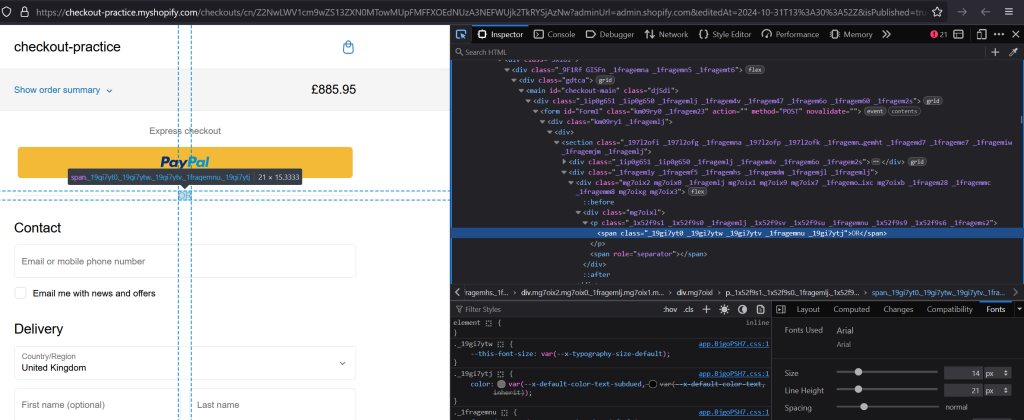
Default Font
Below is the default font for the checkout page. This is what it looks like before branding our checkout page.
Upload the WOFF File
Upload the custom font (e.g. Playmaker_D.woff) to Shopify Admin > Content > Files. Custom fonts must be in either Web Open Font Format (WOFF) or WOFF2. Once uploaded, we’ll need the gid of the WOFF file. There are two ways of grabbing the gid. One is by inspecting it in web tools and it’s usually the ID of the TR element. Second is by sending a GraphQL query. We use GraphiQL to run our queries. Make sure the GraphiQL app has the read_checkout_branding_settings and write_checkout_branding_settings access scopes enabled. As you will see below, they both show the same gid.

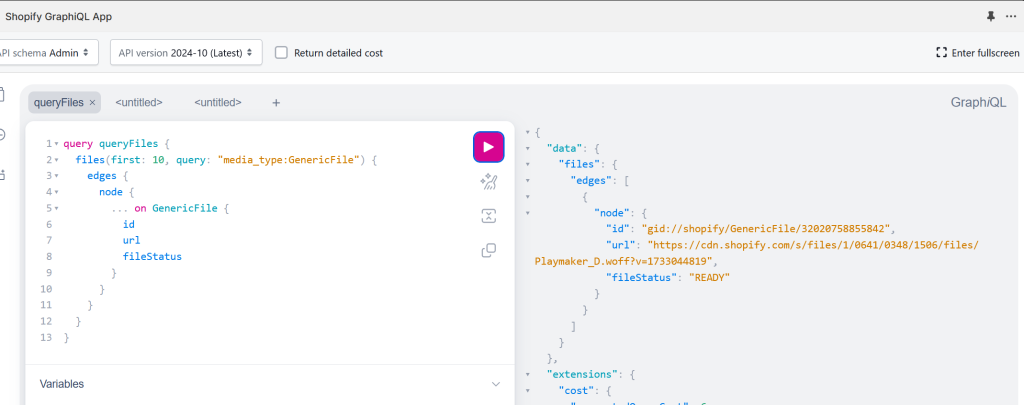
Here’s the GraphQL query for it.
query queryFiles {
  files(first: 10, query: "media_type:GenericFile") {
    edges {
      node {
        ... on GenericFile {
          id
          url
          fileStatus
        }
      }
    }
  }
}Checkout Profile ID
Next, we’ll need the checkout profile ID. This is the target for the custom font changes. Go to Checkout > Customize. The profile ID should appear on the URL address bar after /profiles as can be seen below.

Apply Custom Font
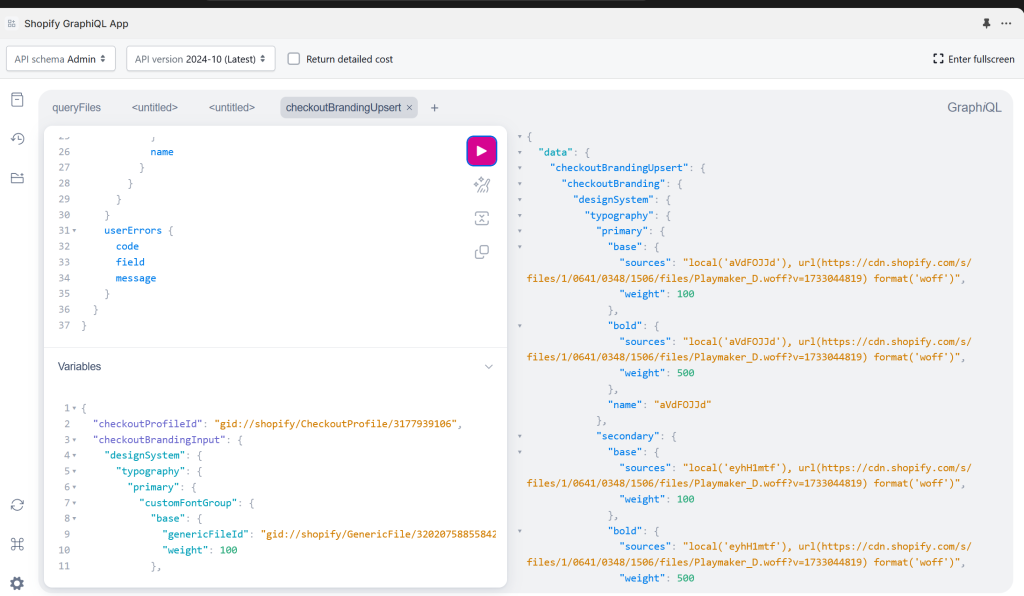
Apply the custom font to primary and secondary surfaces. Primary surfaces include text and buttons. Secondary surfaces include headings. You should see the changes right away. And that is all there is to it. Super simple, isn’t it?
GraphQL query:
mutation checkoutBrandingUpsert($checkoutBrandingInput: CheckoutBrandingInput!, $checkoutProfileId: ID!) {
  checkoutBrandingUpsert(checkoutBrandingInput: $checkoutBrandingInput, checkoutProfileId: $checkoutProfileId) {
    checkoutBranding {
      designSystem {
        typography {
          primary {
            base {
              sources
              weight
            }
            bold {
              sources
              weight
            }
            name
          }
          secondary {
            base {
              sources
              weight
            }
            bold {
              sources
              weight
            }
            name
          }
        }
      }
    }
    userErrors {
      code
      field
      message
    }
  }
}GraphQL variables:
{
  "checkoutProfileId": "gid://shopify/CheckoutProfile/<YOUR_PROFILE_ID>",
  "checkoutBrandingInput": {
    "designSystem": {
      "typography": {
        "primary": {
          "customFontGroup": {
            "base": {
              "genericFileId": "gid://shopify/GenericFile/<YOUR_GENERIC_FILE_ID>",
              "weight": 100
            },
            "bold": {
              "genericFileId": "gid://shopify/GenericFile/<YOUR_GENERIC_FILE_ID>",
              "weight": 500
            }
          }
        },
        "secondary": {
          "customFontGroup": {
            "base": {
              "genericFileId": "gid://shopify/GenericFile/<YOUR_GENERIC_FILE_ID>",
              "weight": 100
            },
            "bold": {
              "genericFileId": "gid://shopify/GenericFile/<YOUR_GENERIC_FILE_ID>",
              "weight": 500
            }
          }
        }
      }
    }
  }
}
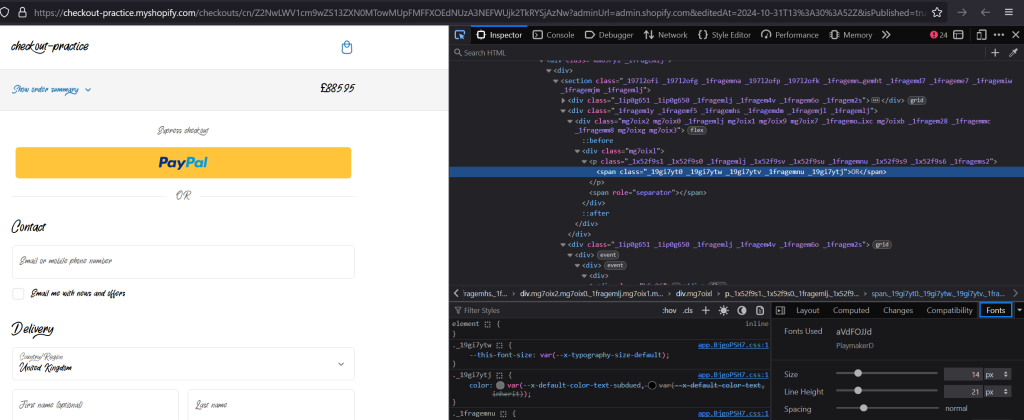
As can be seen below, the custom font has been applied.
More Information
For more information, jump to the ultimate source of this process, Shopify Customize typography. Happy Shopify Checkout Extensibilty branding.